Views and filters
Shape a grid for a task and share it with your project.
The Activities grid has about 40 columns and can hold thousands of rows. A view shapes a grid for one task, such as reviewing your largest purchases, and keeps that shape for every member of your organization. Views work the same way on Activities, Organization entities, Impact inputs, and the Results sheet.
What a view saves
A view saves how the grid looks:
- Filters: Which rows you see.
- Sort: The order of the rows.
- Columns: Their order, which ones are hidden or pinned, and their widths.
Your search isn't part of a view.
Views belong to the project. Every member of your organization sees the same views.
System views and your own views
Each grid comes with system views:
| Grid | System views |
|---|---|
| Activities | All, Matching |
| Organization entities, Impact inputs | All |
| Results, Nature lens | All, Pressures, Ecosystems |
| Results, Climate lens | All |
You can change a system view but not delete it. Reset view in its menu restores the defaults.
To create your own view, click Add view. It saves the current filters, sort, and columns under a name you choose. The view's menu has Rename, Duplicate view, and Delete view.
Sort
Sort by one column at a time, ascending or descending, from the column header.
Filter
A filter narrows the grid to the rows you need. Each filter belongs to one column. Add one from Filter in the toolbar or from the column header.
The conditions depend on the column type:
| Column type | Conditions |
|---|---|
| Text | contains, does not contain, is, is not, starts with, ends with, is empty, is not empty |
| List, such as Currency or Country of production | is, is not, is empty, is not empty |
| Number | is, is not, greater than, at least, less than, at most, between, is empty, is not empty |
| Date | is, is not, before, on or before, after, on or after, between, is empty, is not empty |
| True or false | is, is not, is empty, is not empty |
You can combine conditions at two levels:
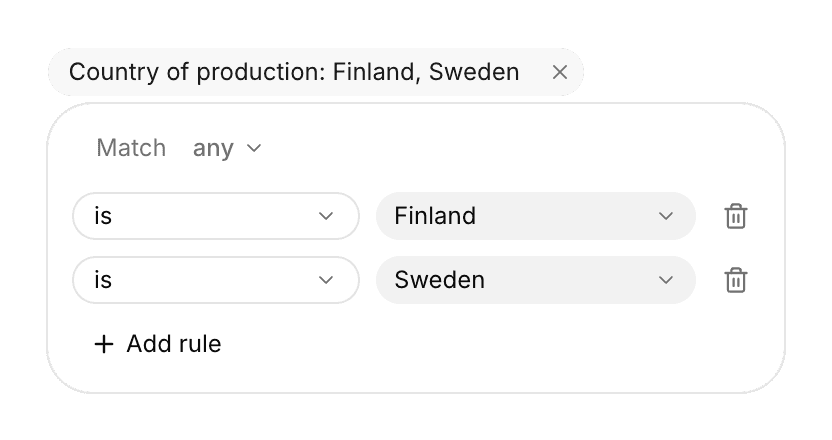
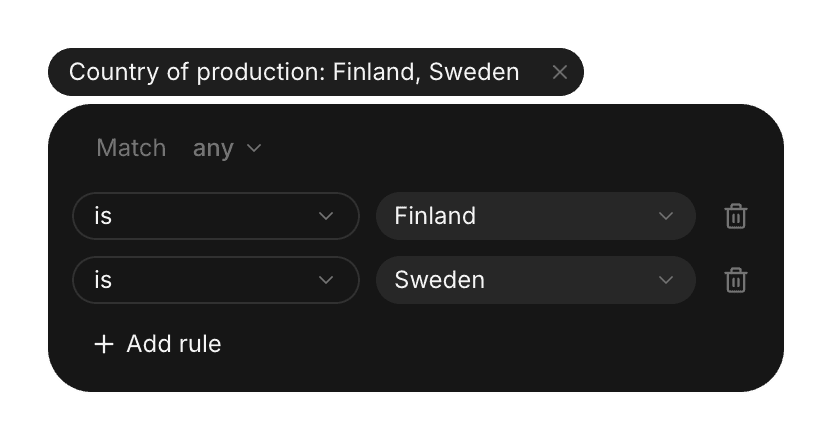
- Within one column: Add several conditions and choose Match all (every condition must hold) or Match any (one is enough). Example: Country of production is Finland, or is Sweden.
- Across columns: With filters on several columns, choose whether rows must match all column filters or any of them. Example: Spend greater than 50,000 and Country of production in the Nordics.
Active filters and the sort show as chips above the grid. Remove one with its chip.
Columns
The Columns menu in the toolbar shows or hides columns, reorders them by dragging, and pins columns so they stay visible while you scroll sideways. Drag a column's edge to resize it. Reset columns restores the view's default layout.
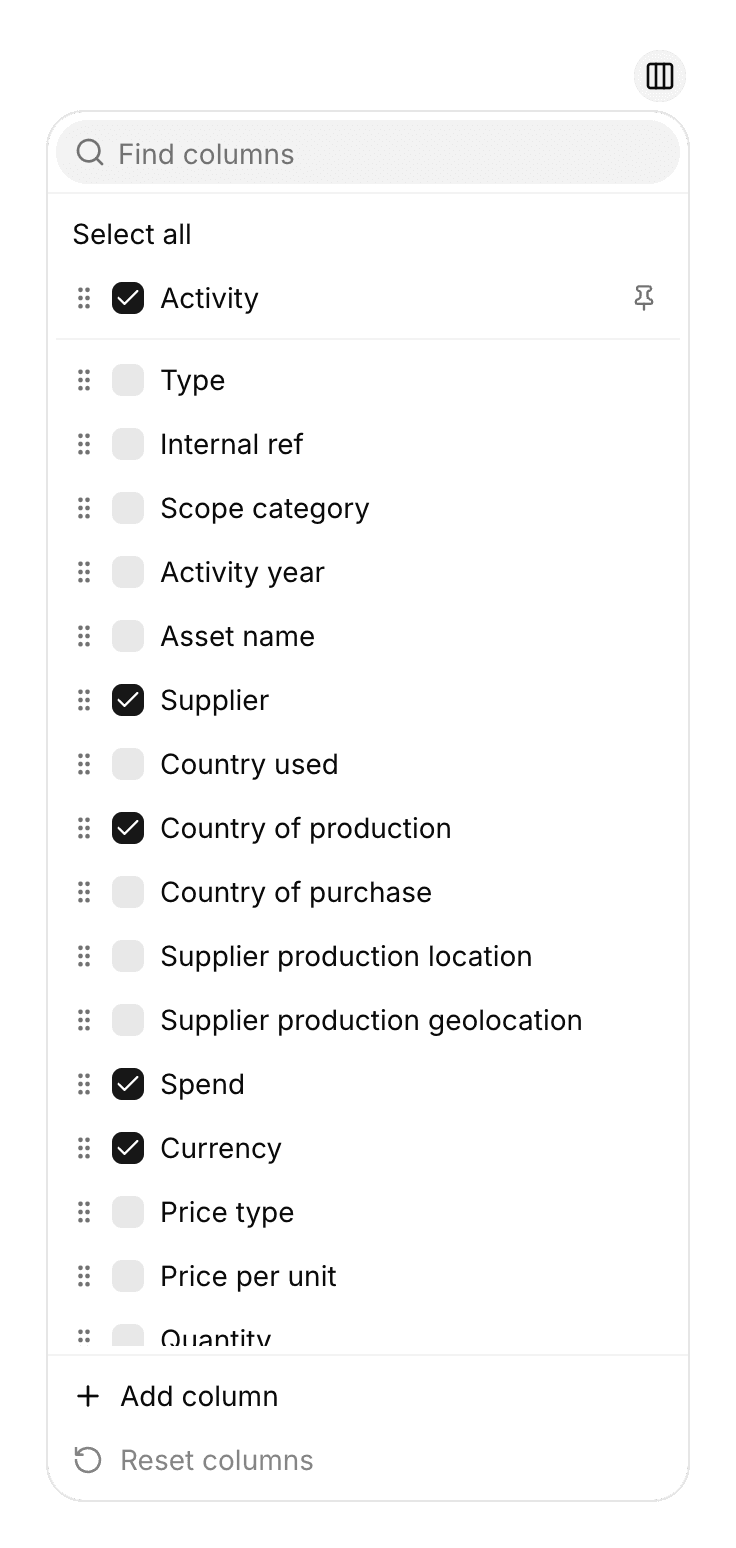
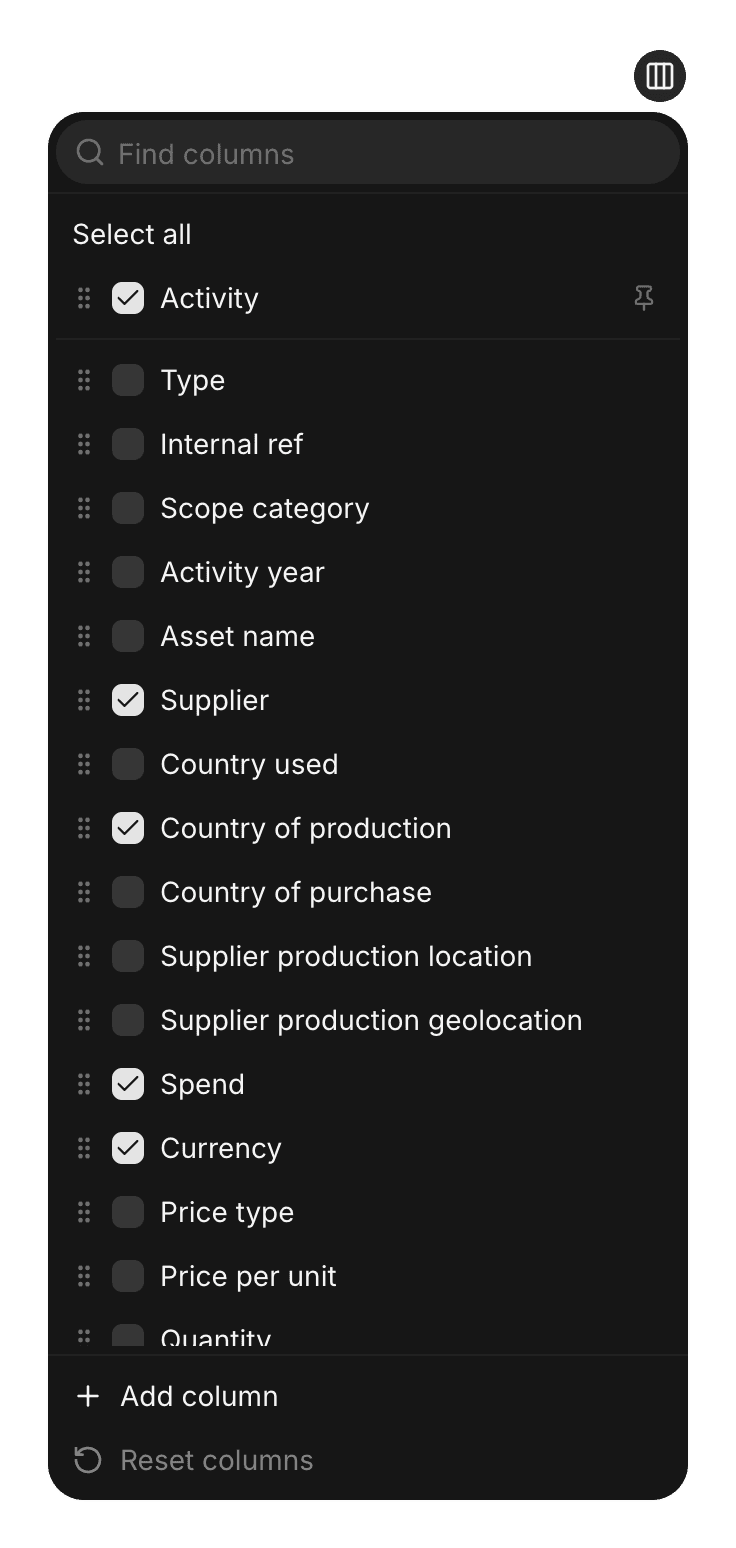
The column header menu has the same actions for one column, plus Insert column left and Insert column right.
Custom columns
Add your own columns for anything Nios doesn't track, such as a product line or a business unit. Choose Add column in the Columns menu, or add a column to your spreadsheet before you import it. Columns you add in the app hold text. On import, Nios recognizes text, numbers, true or false, and dates from the values.
Custom columns travel with every import and export. They never change results.
Group your impacts by your own categories
A custom column defines your own categories, and the Impacts page groups your results by them. Fill in a category for each activity, then choose the column as the source in the Impact Source card or the Intensity Matrix. Your categories are then ranked and plotted like suppliers or countries.
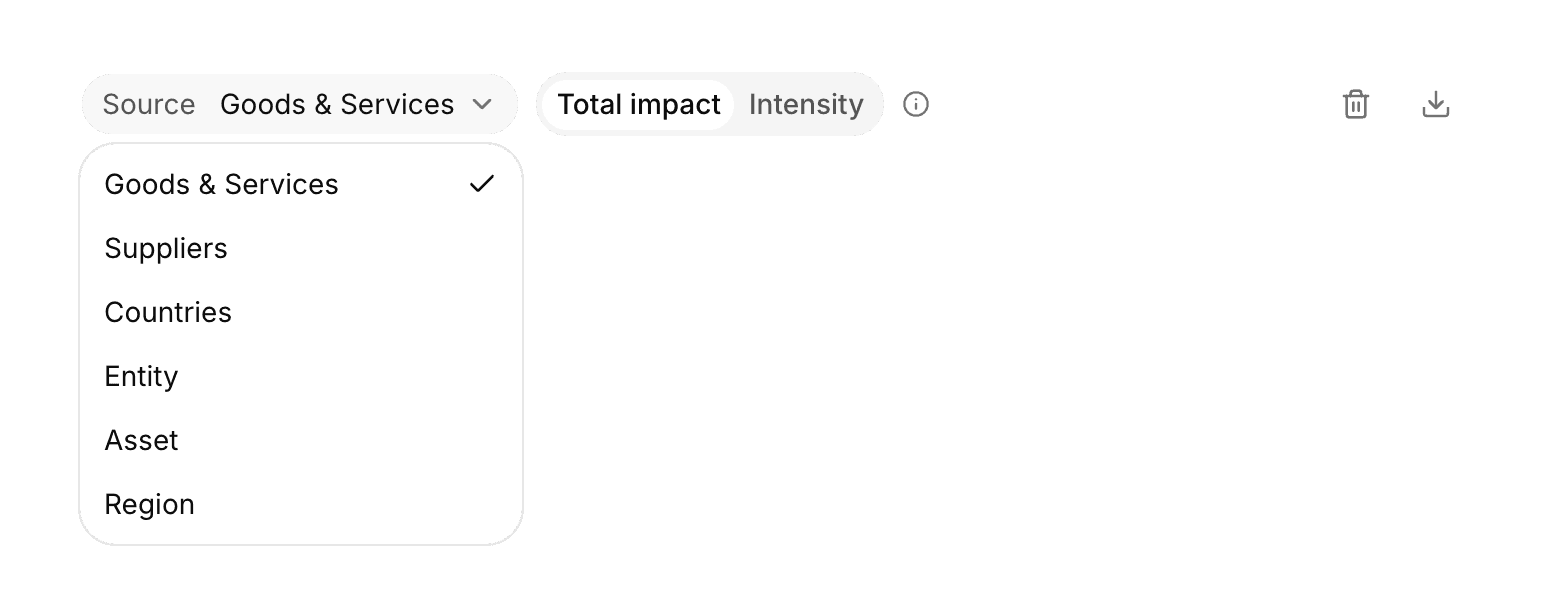
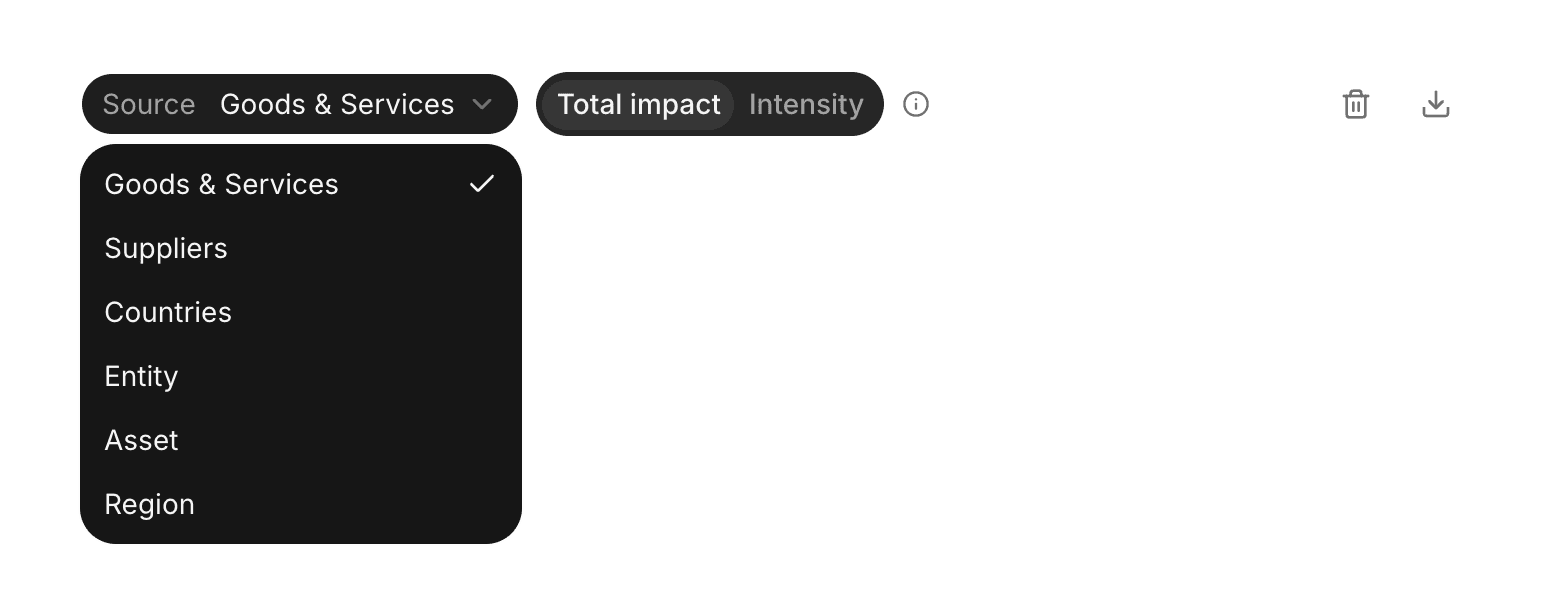
Example: Add a "Region" column with EU, US, and APAC. On Impacts, switch the Impact Source card to Region to see which region carries the most impact.
Every custom column is available as a source. To hide one from the Impacts page, open its header menu and set Show in to None.
Save changes
Column changes, such as order, visibility, pinning, and width, save to the view right away. Filter and sort changes stay a draft until you click Save changes. On a view you can't change, click Save as view to save them as a new view. Reset discards the draft.
Select a view on Match
On Activities, clicking Match switches to the Matching view. To open a different view instead, choose Select view on > Match in that view's menu.
Example: build a supplier review view
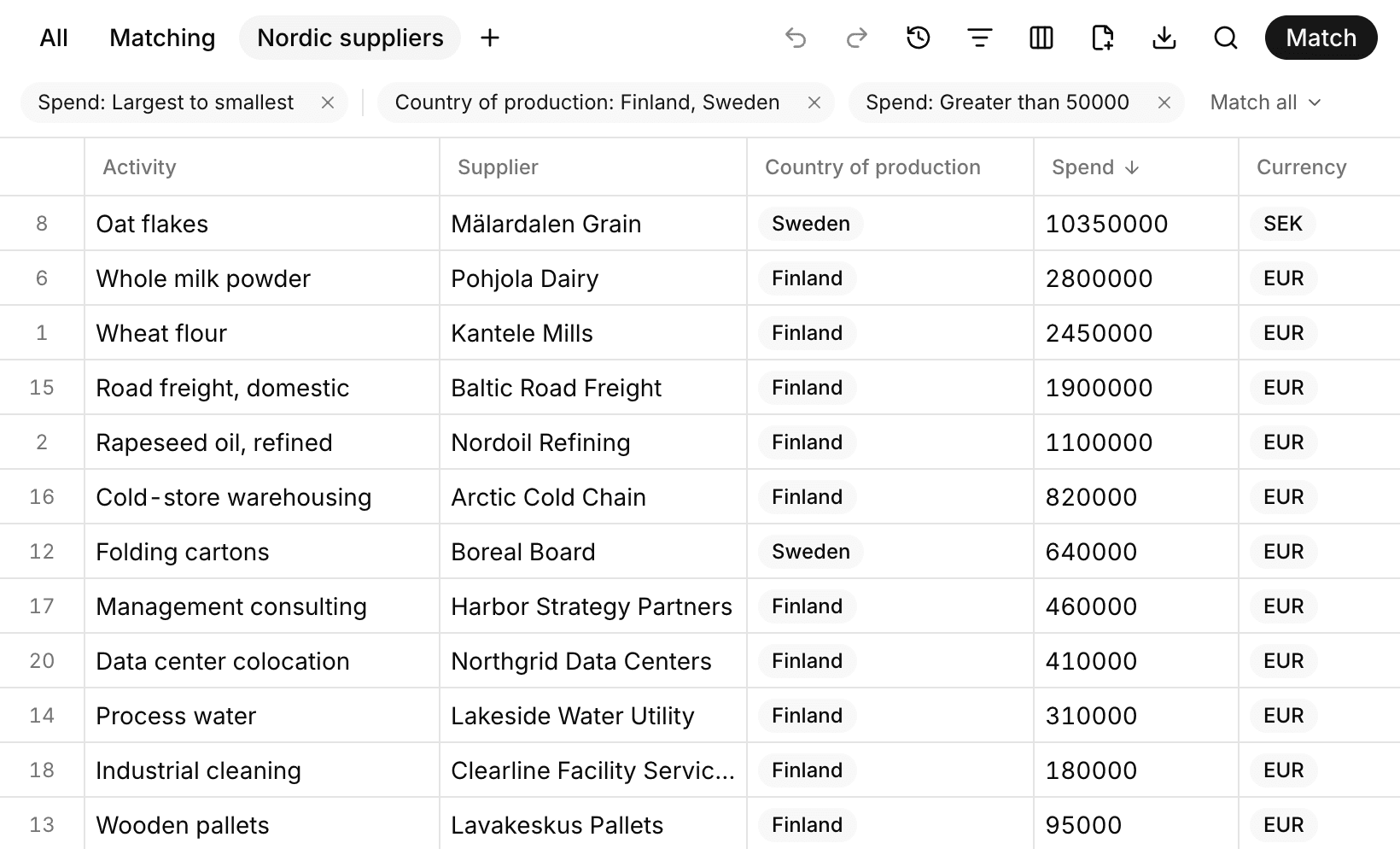
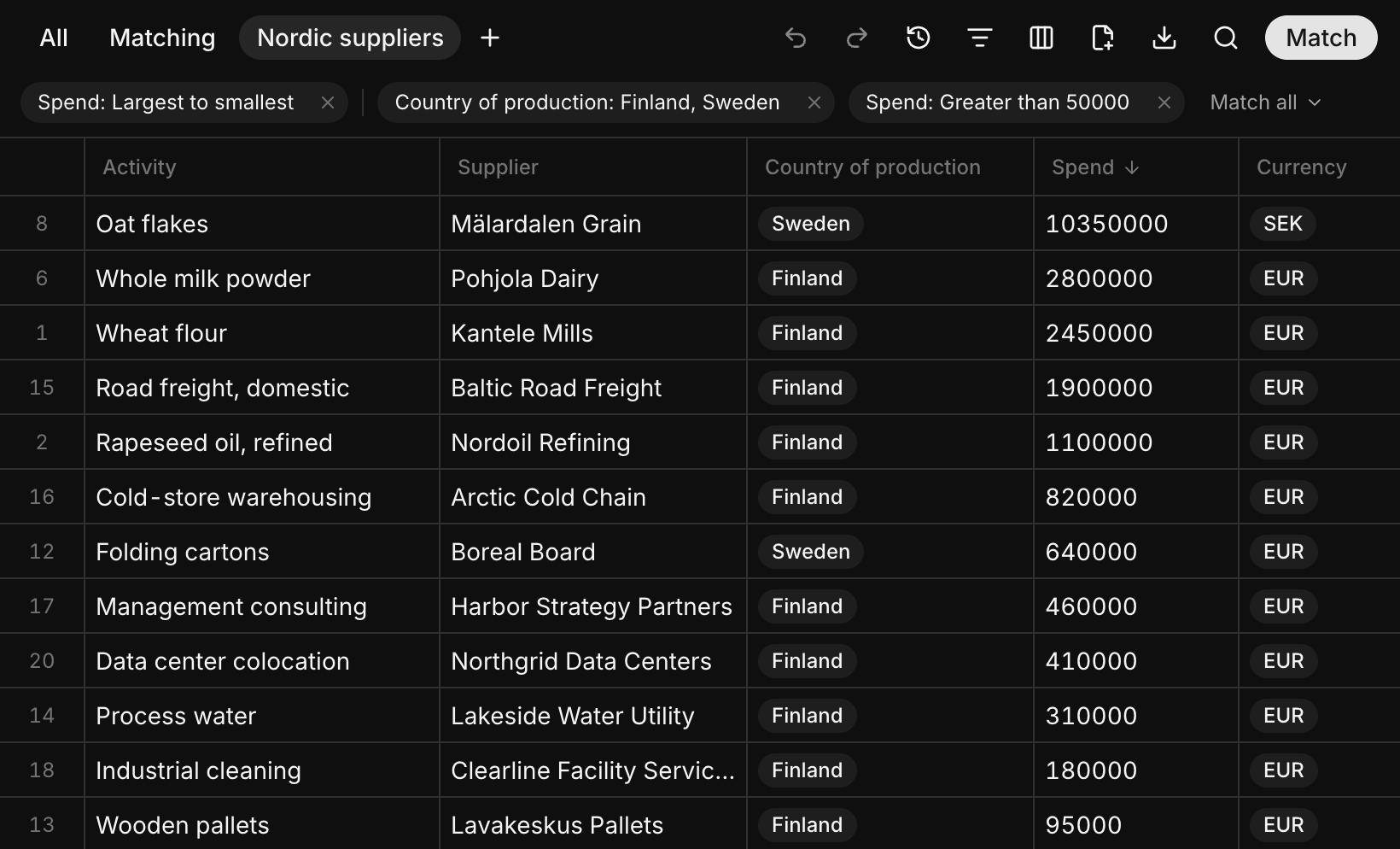
You want to review all larger purchases produced in Finland and Sweden with your team.
- Click Add view and name it "Nordic suppliers"
- In Columns, hide the columns you don't need, drag Supplier and Country of production next to Activity, and pin Activity
- Add a filter on Country of production: is Finland, Match any, is Sweden
- Add a filter on Spend: greater than 50,000. Rows must match both column filters
- Sort by Spend, largest to smallest, and click Save changes
Every member of your organization now has the "Nordic suppliers" view. Export > Current view downloads exactly these rows and columns, see Import and export.